Config
import ShowpadConfig, { PARSERS } from '@bbc/front-end-kit/js/showpad/managers/Config';
A class that extends EventDispatcher and adds Showpad-specific config management to facilitate working with Showpad's config.json.
The Config is mainly made provide consistent and easy access to the contents of the config.json of the Showpad applications. There are many ways to access the json data and this is just another one. It aims to be easy to use and extend and to automate, all while keeping things consistent throughout the codebase.
Some of the functionalities
- Loads the config json automaticall from the Showpad Library
- Provides quick access to labels, assets, asset folders, asset queries and assets by tag.
- Has logic to automatically inject config values into the DOM using Data attributes
Getting started
Het config needs to be initialised and loaded in the following way: Make sure Showpad library is loaded or change the promise structure in such a way to make sure it comes after Showpad finished loading the library.
import ShowpadConfig from '@bbc/front-end-kit/js/showpad/managers/Config'

// initialise config
const config = new ShowpadConfig();

// load & inject into the dom
config.load()
    .then(() => {
        return config.applyToDom()
    })
    .then(() => {
        console.log('config loaded & injected')
    })
Access data
Accessing data can be done using the get method or can happen automatically throughout the dom using the data-sp attribute. Both require at leas a dot-notated version of the path it needs to traverse throught the config property tree.
Example
Config.json
{
    "version": 1,
    "labels": {
        "path": {
            "to": {
                "label-field": {
                    "value": "Some value",
                    "description": "Field description"
                }
            }
        }
    },
    "contents": {
        "path": {
            "to": {
                "asset-field": {
                    "type": "asset",
                    "value": null,
                    "description": "Asset field description"
                }
            }
        }
    }
}
There are many ways to read out the data and use it in the projects. Here are some examples:
Using get in javascript
// access the label
config.get('path.to.label-field'); // returns "Some value"

// access the asset
config.get('path.to.asset-field'); // returns the asset object if assigned in Showpad's editor
Apply To Dom
The config can also inject the values directly into the dom using applytodom(). It will query for elements using specific attribute selectors. The value of these attributes will tell the process what value to use and how to apply it to the DOM.
Data attributes
data-sp: Contains the object path in string form to inform the class where the information can be found inside config.json. In case of special types, it can contain other types of information aside from path.data-sp-asset: Contains the info about the type of asset that we expect to find and how it should be applied to the dom, when the path actually leads to an asset in thecontentsproperty of config.json. When left empty => dump the contents of the object directly into the dom. Values it supports:data-sp-require: Contains the object path in string form to decide if the element it is applied on should be shown or hidden depending on the availability of the value on that path in config.jsondata-sp-value: Injects the config value into the element'sdata-valueattribute instead of its inner HTML.data-sp-attr: Allows to inject the config value in a desired attribute instead of injecting it like normal. When applied tohrefof an anchor tag, it will try to detect e-mails and phone numbers so they can be prefixed with their correspondig protocolsmailto:andtel:data-sp-count: Contains the path to an array or object in config.json. Injects the count (array length or number of object keys) rather than the value itself.data-sp-processed: Is added during injection to show the path it had generated when placeholders were used.
CSS classes
The injection process will add some classes in certain circumstances. These come in handy when
--sp-hide: Is applied to an element usingdata-sp-requirewhen the config value happens to be empty.--sp-missing: Is applied to an element of which the config value happens to be undefined, assuming the value must be missing in the configuration json.
Path not found
During development it is hard to keep the html with data attributes requesting config field values and the actual config json in sync. To anticipate on these very common frustrations, it will track these down and log them in the console inside a collapsed group. This way it does not clutter the logs too much, yet are they still easily accessible.
closed: 
partially opened: 
fully opened: 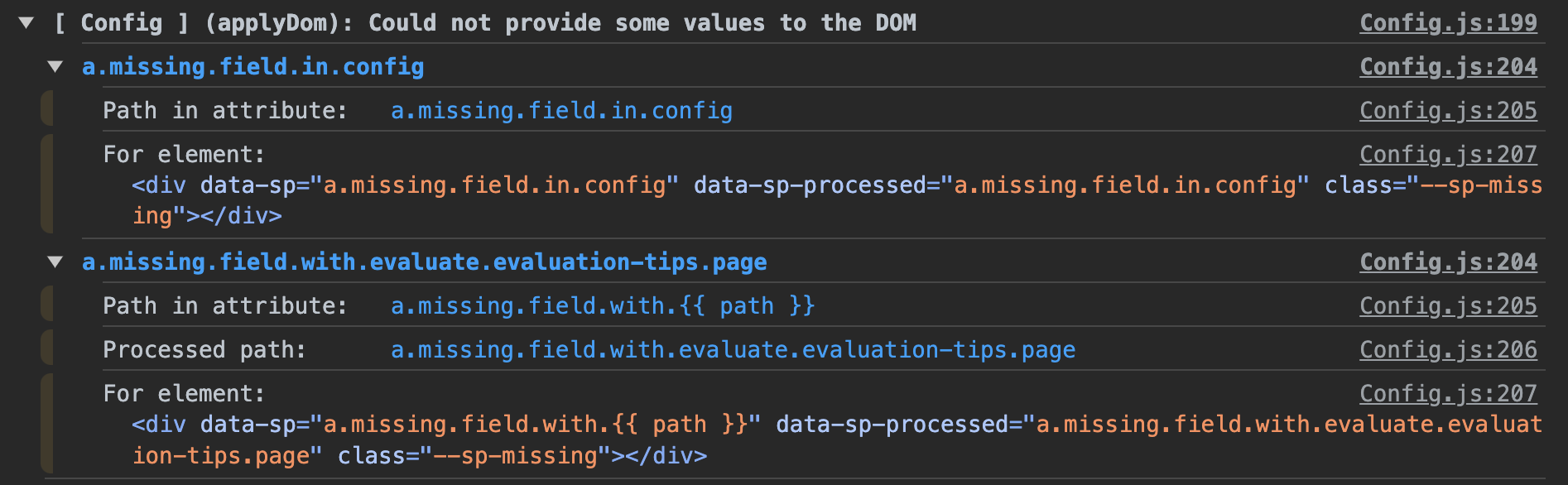
Every missing path in the config will show up with the following info:
- Path found inside the attribute
- The processed path in case the raw path contained placeholders that needed to be replaced. Won't show up if there are no placeholders
- The element the path was found on. When hovering over, it will highlight the element in the page.
Examples
A list of examples on how to use these data attributes in your html.
[path]: Is the placeholder that indicates the location of the path (passed to_get) to the value the config has to look for in config.json. (ex:path.to.value)[value]is the placeholder that indicates the location of the value that will is injected in the end-result.
Simple label
<div data-sp="[path]"></div>
<div data-sp="[path]">[value]</div>
Simple label without value but with the required attribute
<div
    data-sp-require
    data-sp="[path]"></div>
<div data-sp-require data-sp="[path]" class="--sp-hide"></div>
Simple label without value but applied to element that only needs to be toggled
No value rendered when there is a value.
<div data-sp-require="[path]"></div>
<div data-sp-require="[path]" class="--sp-hide"></div>
Simple asset applied to anchor
Works on any asset (image/video/url/page). Only the url to the asset will be used as value Will always add the modal=1 parameter to the query string to force Showpad to open the asset in the build in popup.
<a data-sp="[path]" data-sp-asset="asset"></a>
<a href="[value]?modal=1" data-sp="[path]" data-sp-asset="asset"></a>
Simple asset applied to image
Works on image assets only. Only the url to the asset will be used as value assuming it will lead to a image-like resource.
<img
    data-sp="[path]"
    data-sp-asset="asset" />
<img src="[value]" data-sp="[path]" data-sp-asset="asset" />
Simple asset applied to video
Works on image & video assets only. Only the url to the asset will be used as value assuming it will lead to a video/image-like resource.
This type of asset is ideal to provide support for both image and video in 1 go.
Video asset: When pointing to video, a source tag will be added.
<video
    data-sp="[path]"
    data-sp-asset="asset"></video>
<video
    data-sp="[path]"
    data-sp-asset="asset">
    <source type="video/mp4" src="[value]">
</video>
Image asset: When pointing to an image, a poster tag will be added
<video
    data-sp="[path]"
    data-sp-asset="asset"></video>
<video poster="[value]" data-sp="[path]" data-sp-asset="asset"></video>
Simple asset applied to a DIV
Works on image assets only. Only the url to the asset will be used as value assuming it will lead to a image-like resource.
<div data-sp="[path]"
     data-sp-asset="asset"></div>
<div data-sp="[path]" data-sp-asset style="background-image([value])"></div>
Multitype
A multitype field is a higher-level field. It actually manages 3 fields at once: asset, page-asset and url-asset. It expects these fields to be defined under the same property in config.json.
It will loop through the fields searching for one with a value. It will use the first value it comes accross. From that moment it will treat that asset just like any other asset described above. So it can be applied to DIV, A, IMG and VIDEO
In this example the [path] value should described up until multitype-field: path-to-multitype.multitype-field
{
    ...
    contents: {
        path-to-multitype: {
            "multitype-field": {
                "asset": {
                    "type": "asset",
                    "value": null,
                    "description": "Asset button *"
                },
                "page": {
                    "type": "page",
                    "value": null,
                    "description": "Asset button *"
                },
                "url": {
                    "type": "url",
                    "value": null,
                    "description": "Asset button *"
                }
            }
        }
    }
    ...
}
<video
    data-sp="[path]"
    data-sp-asset="multitype"></video>
<video poster="[value]" data-sp="[path]"></video>
Tags
A tag-type asset will load any asset by tag. It supports both the ability to load assets by tags defined in the config and the ability to load tags directly using our Showpad Asset Loader behind the scenes. It will inject the assets in the dom using Handlebars and expecting to find a Handlebars template inside the element it is applied on.
<ul
    data-sp="[path or comma-separated-tags]"
    data-sp-asset="tags">

    <script type="text/x-handlebars-template">
        <li>
            <a href="{{applink}}">
                <div class="label">{{name}}</div>
            </a>
        </li>
    </script>
</ul>
<ul
    data-sp="[path or comma-separated-tags]"
    data-sp-asset="tags">

    <li>
        <a href="[link to asset 1]">
            <div class="label">[name of asset 1]</div>
        </a>
    </li>
    <li>
        <a href="[link to asset 2]">
            <div class="label">[name of asset 2]</div>
        </a>
    </li>
    <li>
        <a href="[link to asset 2]">
            <div class="label">[name of asset 2]</div>
        </a>
    </li>


    <script type="text/x-handlebars-template">
        <li>
            <a href="{{applink}}">
                <div class="label">{{name}}</div>
            </a>
        </li>
    </script>
</ul>
Asset-tags
Like tags, but only uses assets from the tags result field — ignoring any page-tags results. Same Handlebars template structure applies.
<ul
    data-sp="[path]"
    data-sp-asset="asset-tags">

    <script type="text/x-handlebars-template">
        <li><a href="{{applink}}"><div class="label">{{name}}</div></a></li>
    </script>
</ul>
Page-tags
Like tags, but only uses assets from the page-tags result field. Same Handlebars template structure applies.
<ul
    data-sp="[path]"
    data-sp-asset="page-tags">

    <script type="text/x-handlebars-template">
        <li><a href="{{applink}}"><div class="label">{{name}}</div></a></li>
    </script>
</ul>
Folder
A folder-type asset will load any asset from a given folder using the our Showpad Asset Loader behind the scenes. It will inject the assets in the dom using Handlebars and expecting to find a Handlebars template inside the element it is applied on.
<ul
    data-sp="[folder-link]"
    data-sp-asset="folder">

    <script type="text/x-handlebars-template">
        <li>
            <a href="{{applink}}">
                <div class="label">{{name}}</div>
            </a>
        </li>
    </script>
</ul>
<ul
    data-sp="[folder-link]"
    data-sp-asset="folder">

    <li>
        <a href="[link to asset 1]">
            <div class="label">[name of asset 1]</div>
        </a>
    </li>
    <li>
        <a href="[link to asset 2]">
            <div class="label">[name of asset 2]</div>
        </a>
    </li>
    <li>
        <a href="[link to asset 2]">
            <div class="label">[name of asset 2]</div>
        </a>
    </li>


    <script type="text/x-handlebars-template">
        <li>
            <a href="{{applink}}">
                <div class="label">{{name}}</div>
            </a>
        </li>
    </script>
</ul>
Query
A query-type asset will load any asset from part of a given filename using the our Showpad Asset Loader behind the scenes. It will inject the assets in the dom using Handlebars and expecting to find a Handlebars template inside the element it is applied on.
<ul
    data-sp="[filename]"
    data-sp-asset="folder">

    <script type="text/x-handlebars-template">
        <li>
            <a href="{{applink}}">
                <div class="label">{{name}}</div>
            </a>
        </li>
    </script>
</ul>
<ul
    data-sp="[filename]"
    data-sp-asset="folder">

    <li>
        <a href="[link to asset 1]">
            <div class="label">[name of asset 1]</div>
        </a>
    </li>
    <li>
        <a href="[link to asset 2]">
            <div class="label">[name of asset 2]</div>
        </a>
    </li>
    <li>
        <a href="[link to asset 2]">
            <div class="label">[name of asset 2]</div>
        </a>
    </li>


    <script type="text/x-handlebars-template">
        <li>
            <a href="{{applink}}">
                <div class="label">{{name}}</div>
            </a>
        </li>
    </script>
</ul>
Placeholders
As writing down config paths repeatedly can become a very tedious task, it is also possible to define placeholders when initialising the configuration. This helps to make paths more dynamic, every placeholder can either be af fixed value or a function that will decide what value should be used based on a few parameters like the element it is requiring, the placeholder structure, ...
Note
The name of the property on which the placeholder value is defined will be used as the key of the placeholder to look for in the requested config paths.
Fixed value
The fixed value will always replace the placeholder with the same string, wherever it appears
import ShowpadConfig from '@bbc/front-end-kit/js/showpad/managers/Config'

const config = new ShowpadConfig({
    placeholders: {
        myCustomPlaceholder: 'this.is.a.placeholder.piece'
    }
})

config.get('first-part.{{ myCustomPlaceholder }}.field');

// Retuns the value on path:
// [labels/contents].first-part.this.is.a.placeholder.piece.field.value
Dynamic value
Sometimes we need a placeholder that is dynamic depending on the context in which the element is located. To achieve this capability it is required to pass a method instead of a fixed value. The method will receive an object with the following properties to help you decide the output based on the context:
$el: The element in the dom from which we're processing the value. (when run byapplyToDome, not present when usingget)placeholder: The placeholder type were processing.path: The path the element contains, may or may not already be partially processed by another dynamic placeholder method- `extracts: Contains all the extracted placeholders that can be found in the path of the elment. Uses èxtractPlaceholders behind the scenes to extract the placeholders.
import ShowpadConfig from '@bbc/front-end-kit/js/showpad/managers/Config'

const config = new ShowpadConfig({
    placeholders: {
        part: ({ $el, placeholder, path, extracts }) => {
            if ($el.tagName === 'H1') {
                return 'title'
            }
            return 'text';
        }
    }
})

config.applyToDom();
<!-- will use value on path: [labels/contents].path.to.title.value -->
<div data-sp="path.to.{{ part }}"></div>

<!-- will use value on path: [labels/contents].path.to.text.value -->
<h1 data-sp="path.to.{{ part }}"></div>
API
constructor (args = {})
The constructor method initialises the Config object
Parameters
args: The configuration object used by the constructor to initialise the AppsDb in the desired way.config: Provides the instance with an already existing config object. ...Configurationparameters
load ()
Showpad's config is not automatically available on page load. This method provides a quick way of loading the object and letting us know when it is done.
Returns
Returns a Promise that will resolve when Showpad is done loading the config.
get (path, single = false)
Extends the Configuration's get method with some additional logic.
- Paths can be shortened.
labelsandcontentscan be removed as wel as thevalueproperty at the end of the path.labels.some.deeply.nested.title.valuecan be called up withsome.deeply.nested.titleinstead without issue.
    // full paths
    config.get('labels.some.deeply.nested.title.value')

    // shortened path
    config.get('some.deeply.nested.title')
- Paths passed will first check
labels. When nothing is found, it will continue looking for the given path incontents - Paths to assets will return the assets instead of returning the value on the
contentspath. - If the asset is a url or folder type, it will return the value of the asset's
contentsvalue which will be the url of the asset.
getAssetsByTags (path/tags)
Deprecated
Use Assets.getAssetsByTags() instead.
Returns the assets found on either the given path or by loading them using the given tags.
Parameters
pathortags: Either 1 single string representing a path/tag or an array containing strings representing the tags.
Return
Returns a Promise that will resolve when the assets are loaded using the Showpad library. The resolved data object will be an Array of Showpad Asset objects.
getAssetsByTagIds (tags)
Returns the assets that contain the given tag id(s) using our Showpad Asset Loader behind the scenes
Warning
This gets the assets from the loaded assets in the config.json
Parameters
tagIds: Either 1 single string representing a tag id or an array containing strings representing the tag ids.
Return
Returns an Array of assets found in config.json matching the tag id criteria.
getAssetsInFolder (folder)
Deprecated
Use Assets.getAssetsInFolder() instead.
Returns all the assets found in the given folder link.
Parameters
folder: A string representing the location of the folder where the assets are located.
Return
Returns a Promise that resolves with the raw asset data from the Showpad library.
getAssetByQuery (query)
Deprecated
Use Assets.getAssetsByQuery() instead. Note the singular vs plural naming difference (getAssetByQuery here vs getAssetsByQuery on Assets).
Caution
Not a 'query' method using Showpad's query language! Showpad's getAssetsByQuery completes a predefined query with the given string between % making it a search by name!
Parameters
query: A string representing part of the asset name to search for.
Return
Returns a Promise that resolves with an array of matching asset objects.
applyToDom ({ $el, preventLabelInject } = {})
Applies the values stored in Showpad's config.json to the DOM by using values of specific data attributes. (Full documentation)
Parameters
$el(Element, defaultdocument): Scope root — only elements within this element are processed.preventLabelInject(boolean, defaultfalse): Whentrue, skips label injection (plain text values). Used internally byShowpadAppwhenconfigGenis active.
Return
Returns a Promise that will resolve when all the config values are applied to the DOM.
typeOfPath (path)
Checks which section of config.json the given path belongs to.
Parameters
path(string): Dot-notated config path.
Returns
'label' if the path resolves in labels, 'asset' if it resolves in contents, or null if the path is not found.
Getters & Setters
config
Get/set the raw config object. The setter dispatches config-changed when the value changes.
labels
The labels section of the loaded config object.
contents
The contents section of the loaded config object.
assets
The assets dictionary of the loaded config object (keyed by asset ID).
attributes
The internal ATTRIBUTES map (e.g. { showpad: 'sp', asset: 'sp-asset', … }). Useful for building custom selectors.
placeholders
The active placeholder map used during DOM injection.
Events
| Event | When |
|---|---|
loaded | After load() successfully parses the config |
dom-updated | After applyToDom() finishes processing all elements |
asset-injected | After each individual label or asset is injected into an element. Payload: { details: { $el, label } } or { details: { $el, asset } } |
config-changed | When the config setter receives a new value |
Todo
- Revise
getAssetsByTagsandgetAssetsByTagIdsso that it is clear how they will be looking up their assets: using the loaded config object or using Showpad library.- Suggestion: Make them all use config.json to force us to use our
Showpad Asset Loaderwhen it is required to load them from Showpad directly. - Suggestion: Make new class
ShowpadConfigso by the time that one is created, we don't need to refactor older projects that are already using the older deprecatedConfig.jsclass.
- Suggestion: Make them all use config.json to force us to use our
- Maybe separate
applyDominto a separate class so it can both be used for this class and ourShowpad Asset Loaderdirectly. It would create a good separation of roles (1 uses config, 1 gets assets using Showpad's library) but only 1 way of applying both resources to the dom. injectAssetsshould auto detect the presense of a HBS template inside the element, likeinjectHbsAssetsso that all forms of config injection support HBS templates out of the box